Adding Devices in the TrackIt App
The easiest and quickest method for adding/updating the devices installed on a truck is to use the TrackIt App. This page illustrates how that is done.
Click here for Printable Version: 
 Required Items:
-
Android Tablet
-
Must have TrackIt installed
-
Must have a live cellular data connection
-
Must have camera available to scan barcodes
-
-
Bar code labels accessible from each device
Step 1
-
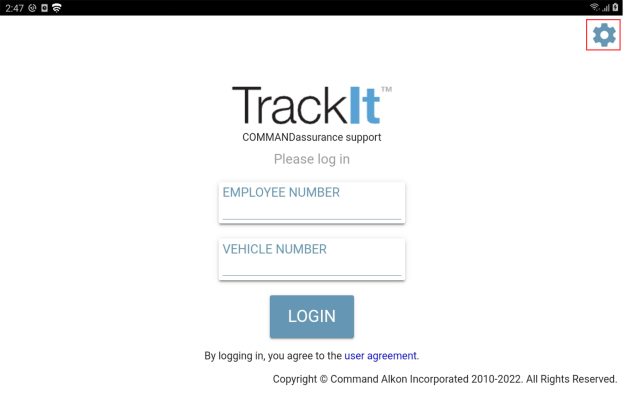
On the login screen select the gear icon in the top right:
-
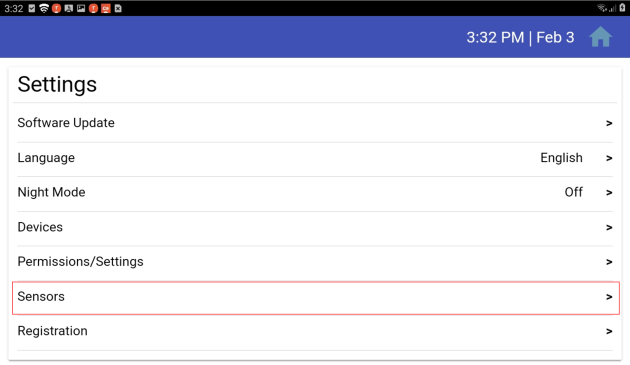
Find and tap Sensor in the list of options
-
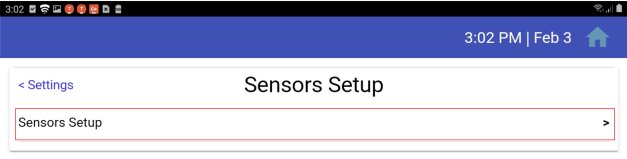
Find and tap Sensor Setup
-
Be sure System Type: Probe is selected and enter the vehicle number in the Vehicle Number field. Then tap the Find button
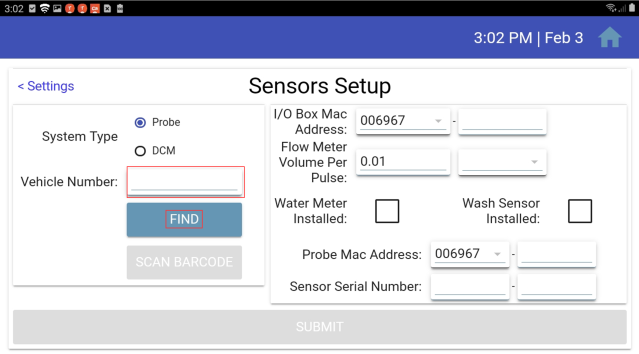 TrackIt will find the vehicle and auto-populate the any available information on the right
 -
There are two methods for entering the MAC addresses and Serial Number
-
Manually type them in
-
Use the Android camera to scan the bar codes on the labels
-
-
Bar code scan:
-
Tap the Scan Barcode button to activate the camera
-
Aim the camera at the bar code label for each device
Note: each label has a prefix that identifies its device type. So TrackIt will automatically know where to insert the bar code information. -
Repeat these steps to enter the ID for each of the three devices
-
-
For Water Meters:
-
Tap the Water Meter Installed checkbox
-
Enter: .005 in the Flow Meter Volume Per Pulse field for all flow meters purchased from COMMANDalkon. (For all other flow meters, consult the manufacturer's recommendation)
-
-
Verify all data entered is correct and tap Submit
-
The TrackIt app will save the information to the TrackIt Web site.
-
Each time the driver logs in on the tablet the TrackIt app will retrieve the settings and use them to connect to the Sensor Link (I/O Box), Display, and Probe Control Unit.
NOTE: The system will not use this information and will not connect to any devices until the next successful TrackIt login for that vehicle.
-
Troubleshooting:
Cannot connect to Probe
If the tablet does not connect after logging in to TrackIt and spinning the drum for multiple revolutions, do the following:
-
Reset the Sensor Link (I/O Box)
-
Wait a few minutes for it to reset and establish a connection
If the above does not work, please contact: CMDassuranceSupport@commandalkon.com