Load Advice
The Load Advice screen in COMMANDbatch helps the Batcher to more accurately manage water for both slump and temperature. With accurate water weights the load will be batched so that the driver can save time by not having to adjust the slump at the wash stand.
Making water temperature decisions based on previous loads allows the Batcher to make accurate adjustments and avoid costly rejections.
Using the results of previous loads, the Batcher will make informed decisions on how to trim water and manage temperatures for each subsequent load.
Load Advice shows the average Slump Loss rate and provides a Target Batched Slump. If the batcher can hit the Target Batched Slump then the driver can wash and go and the vehicle will arrive at the job with the exact slump the customer ordered.
Likewise with temperature, the Batcher will know the temperature change and can make informed decisions on using heated water, ice, etc. depending on environmental conditions.
Click here for Printable Version: 
 System Requirements and Setup:
-
COMMANDbatch version : 2023.1.0
-
Follow the Setup instructions contained in the COMMANDbatch > Truck Probe Setup Guide.
Batcher Experience
Goals:
-
To help the Batcher adjust the water trim on the load so that the slump matches the Target Batch Slump.
If Successful, the driver can wash and go and arrive at the job site with a slump that matches the customer's ordered slump. -
To help the Batcher manage the water temperature to ensure the concrete temperature is within spec for the mix design.
If Successful, the concrete will meet its strength requirements and costly rejected loads will be avoided.
Target Slump Process:
When a ticket is received from Dispatch, COMMANDbatch then sends a request to TrackIt to obtain the Load Advice data.
The Load Advice data, includes slumps, slump loss rates, and temperature changes from previous tickets on the same order.
-
Load Advice takes the average slump loss of the previous tickets on the order to determine the Approximate Slump Loss.
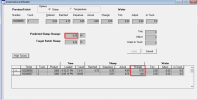
NOTE: The Data from the previous ticket (same order) is displayed at the top.
-
Load Advice then adds the averaged slump loss to the slump ordered by the customer to determine the Target Batched Slump
Example:
[Ordered Slump] - [Predicted Slump Change] = [Target Batched Slump] 5 - (-75) = 5.75 -
Change the Trim, Adjust, or In Truck values in order to load the truck with a slump equal to the Target Batched Slump
NOTE: In some cases, it may be more accurate to change the moisture settings instead of changing the Trim, Adjust, or In Truck values. -
If the load is batched at the Target Batched Slump, then the driver can quickly wash and leave the yard and the load will arrive at the customer site with the correct slump matching what the customer ordered.

Temperature Change Process:
-
Select the Temperature radio button at the top to see the temperature change.
-
Load Advice determines the average temperature change between departure and arrival from all previous tickets on the order.
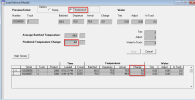
NOTE: The data from the previous ticket (on the same order) is displayed at the top
-
The Batcher can now make an informed decision on whether or not to add heated water, ice, etc. to ensure the load arrives with a temperature that is within the design spec.

Steps:
-
If Load Advice is available, a button is displayed on Batch Setup.
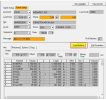 Note: The Load Advice button is never available on the first ticket for an order. It is only displayed the 2nd, 3rd, 4th...
 - Review the previous ticket's load information (from the same order) to help determine what to do with the current load.
- Review the current water Trim, Adjust, and In Truck values.Note: These values are pre-populated with the same values in the Batch Setup screen. However, the Water In Truck is populated with the amount of water the driver added after washing out on the job if the drum was not emptied.
- Click on the Load Advice button to see the Load Advice details
- After reviewing the details, update the water Trim, Adjust, or In Truck values in the Load Advice screen as needed to change how much water is batched in the load.
- If desired, click Show Tickets to see the details of each ticket on the order
The Target Batch Slump is based on the slump loss rate of previous tickets.
If the number seems incorrect, then be sure to look at the ticket details to figure out why and then determine your own Target Batch Slump if needed. - Update the water Trim/Adjust/In Truck values based on what you think will be most accurate for batching the load.
- To see temperature change, click the Temperature radio button at the top.
- Use the average temperature change from previous tickets to determine if any heated water, ice, etc. should be used to ensure the temperature is within the design spec.
NOTE: Temperature changes must be done manually in the COMMANDbatch setup screen - Click Apply or Cancel
- Apply will apply the changes to the water Trim or Adjust or In Truck to the Batch Setup form.
- Cancel will discard any changes to the water values and exit the Load Advice form.
- Once satisfied with the water settings, click Start to begin loading the truck.

Load Advice Audit Report
The audit report provides tracking to identify how often the Load Advice feature is used, if any adjustments were made, and the slump outcome. If all is working as expected, the loads will be batched so that the driver can leave the yard quickly and arrive at the job site with the correct slump.

Report Location:
The Load Advice Audit report is located in COMMANDbatch under: Reports > Miscellaneous > Load Advice Audit
Explanation of columns and values:
-
Ticket: The Ticket Number of the load
-
Time: The Time the load was batched
-
Truck: The Truck Number of the vehicle being loaded
-
Load Size: Volume of concrete loaded into vehicle
-
Load Advice Referenced: Indicates whether or not the batcher viewed the Load Advice screen before batching the load.
-
Load Advice Updated: Indicates whether or not the batcher changed the Trim, Adjust, or In Truck values while in the Load Advice screen.
-
Avg Slump Change: The Average Slump Change value displayed to the batcher in the Load Advice screen
-
Target Slump: The Target Batch Slump value displayed to the batcher in the Load Advice screen
-
Ordered Slump: The slump the customer requested on the concrete order.
-
Batch Slump: The slump the load was batched at for the ticket
Note: the goal is for this to be the same value as the Target Batch Slump that the Load Advice screen recommended. -
Original Trim/Adjust/In Truck: The Trim, Adjust, In Truck values used on the previous ticket on the same order.
-
Updated Trim/Adjust/In Truck: The Trim, Adjust, In Truck values if changed by the batcher before closing the Load Advice screen.
-
Batch Trim/Adjust/In Truck: The Trim, Adjust, In Truck values if changed by the batcher before closing the Load Advice screen.
Sorting:
All tickets are grouped by Order and sorted by the Time.