| Product Requirement: TrackIt |
Batch Summary Report
The Batch Summary report provides a ticket-based overview of batch results and slump conditions for concrete batches. Utilizing the probe, users can gather information specific to how much time a driver spends in batch loading status, product quantity and water added, and average values of slump readings. The Batch Summary report data provides data in two different sections: the Averages section and the Summary section.
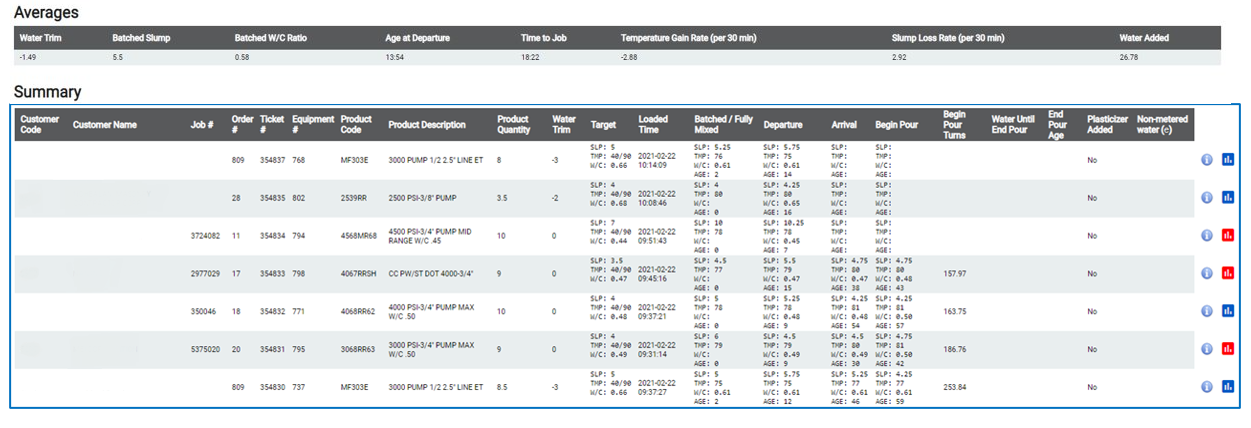
This report proves invaluable when searching for potential issues or inefficiencies in the batching process. This enables your company to monitor implement improvements to business processes over time.
 Generating a Batch Summary Report
The Include Voided Tickets search parameter allows you to see data for batched loads with tickets that were voided. The voided ticket report data allows for researching and identifying which factors might have affected the quality of the load. These issues can then be addressed to prevent future voided tickets. Additional filters are Plant, Equipment, Product, Job, and Order.
-
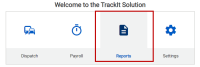
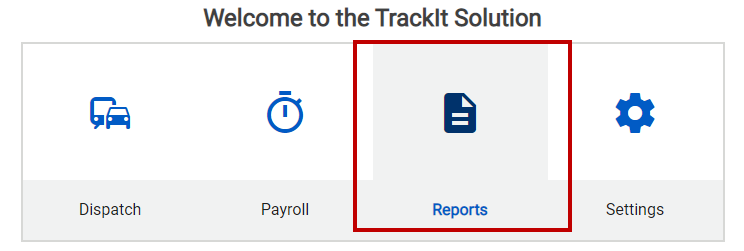
Select the Reports icon in the TrackIt Solution.
-
Select
Batch Summary.
-
Indicate a date range for the report data using the Start Date/Time and End Date/Time drop-downs.
 The date range cannot exceed two days.
 - Select the Include Voided Tickets check box if necessary.
-
Use the available drop-downs to further filter the returned ticket data by Plant, Equipment, Product, Job, or Order.
It is recommended to filter by Plant. -
Select the View Report button to display the Batch Summary Report.



 Viewing Tickets
Selecting the informational ( ) icon on the Batch Summary Report opens the View Ticket dialog. Batch and mix information for the ticket can be reviewed here.
| View Ticket icon on Batch Summary Report |  |
| View Tickets dialog (General tab) | 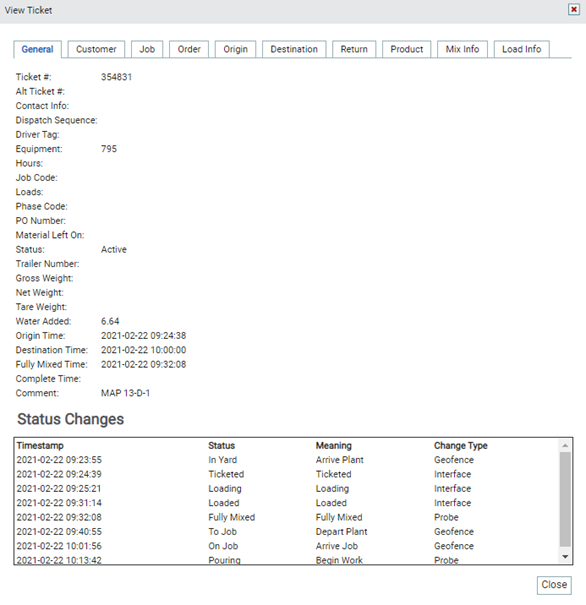
|
| View Tickets dialog (Mix Info tab) | 
|
| View Tickets dialog (Batch Info tab) | 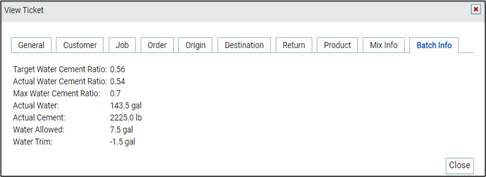
|
Viewing Load Properties
Selecting the graph icon ( ) on the Batch Summary Report opens the Load Properties Report for the current ticket. If the icon is red (
 ) there are alerts on the ticket that details issues or events that impacted the report data.
| View Load Properties icon on Batch Summary Report | 
|
| Load Properties Report (No Alerts) | 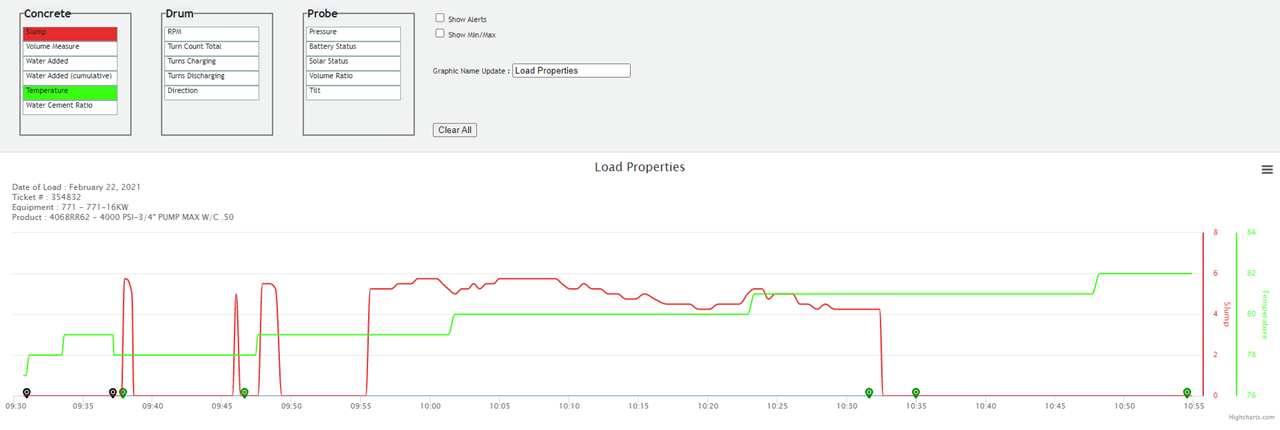
|
| Load Properties Report (Alerts) |  
|